Keyword tracking
A watchlist counted from Google's complete per-query totals
Your Search Console query list runs to thousands of rows, and most of them are searches you will never act on. The twenty or two hundred that actually pay the bills are buried somewhere in there, with nowhere to keep them. This screen is that place: a list you write yourself, filed into folders you name. The headline count comes from Google's complete per-query totals; the tables and the pivot underneath are built from the detailed sample, and the screen says on the page which figure is which.

How it works
Six figures over your own keywords
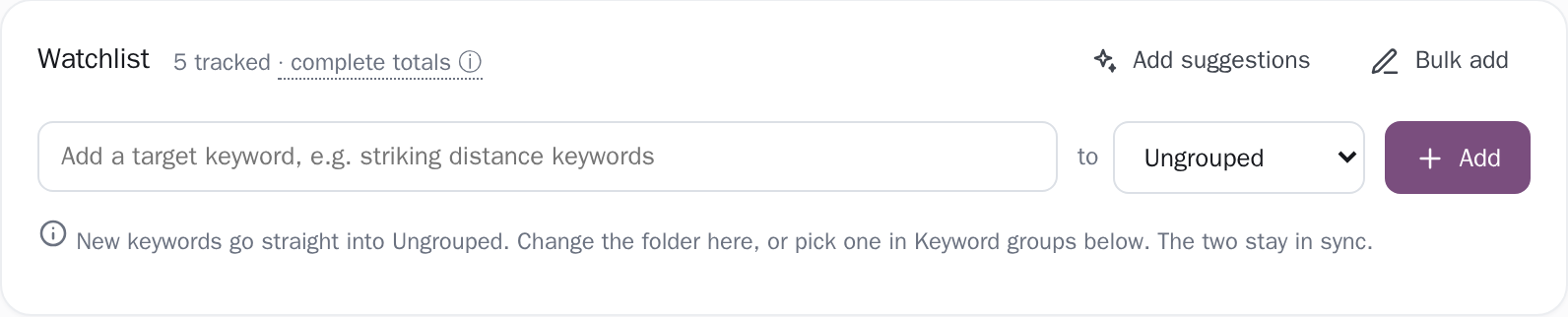
Add a keyword by typing it (the box offers up to 40 suggestions drawn from your top queries, minus what you already track) or paste a whole spreadsheet column into the bulk box, which splits on line breaks, tabs, commas and semicolons and previews the result before it lands, counted three ways: how many are new, how many you already track, and how many the paste repeated.
Above the card, six tiles count the list: Tracked, Ranking (has impressions in the window, meaning appearances of your site in someone's results), Striking distance (average position 5 to 15), Not ranking, Clicks, and an average position weighted by impressions, so a search you appear for ten thousand times counts for more than one you appear for twice.
Every tile prints its own rule underneath it, so no figure on this card needs a manual. The watchlist and the folders are saved to the server as well as the browser, so clearing site data or moving to another laptop does not lose the filing work.
Folders you name, up to ten levels deep
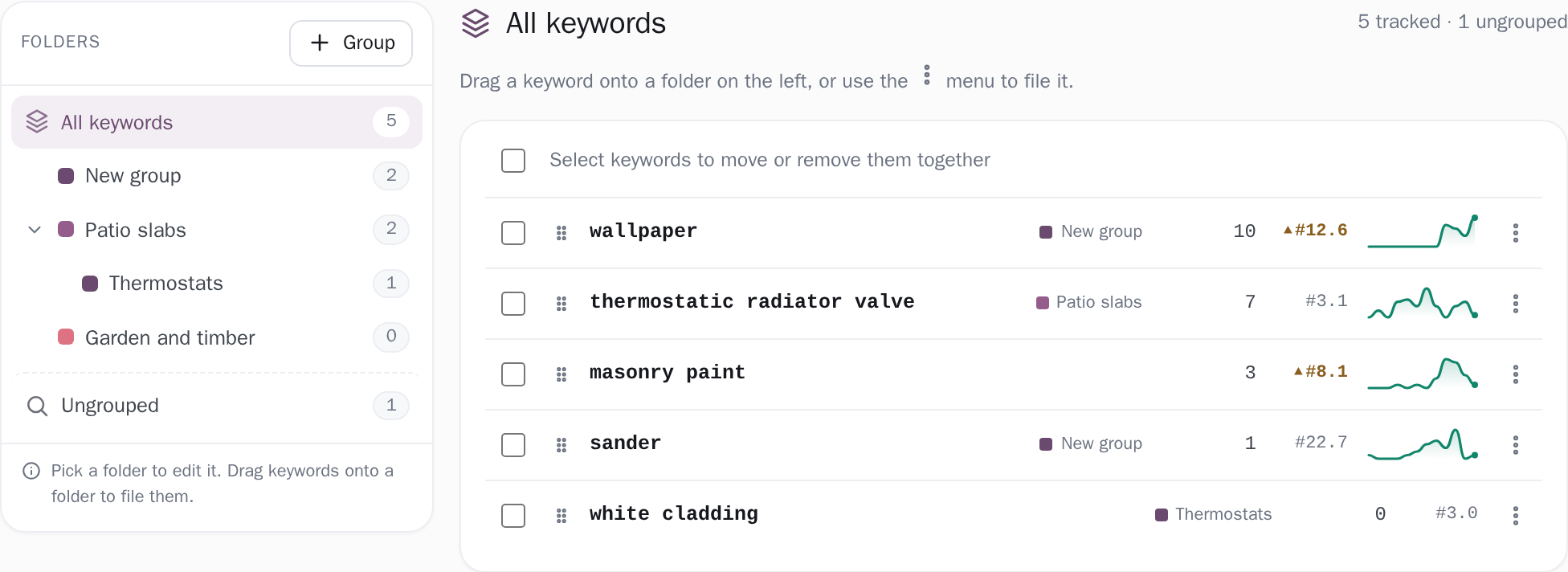
Drag a keyword from the list onto a folder to file it, tick several rows and move them together, or open a folder and pick keywords into it by name. Folders hold subfolders, ten levels deep, and each row of the tree carries its own count including everything nested under it. A keyword sits in exactly one folder at a time: filing it somewhere new takes it out of where it was, and anything you have not filed appears under Ungrouped, which is also where a folder's keywords fall back to if you delete the folder.
Open a folder and you get four tiles for it (clicks, impressions, click-through rate and average position), each stamped complete · 90 days because they are summed from the same complete per-query totals as the scorecard, a card for each subfolder, and the keyword rows themselves with a strike marker at position 5 to 15 and a clicks sparkline over the last twelve stored months (fewer on a project that has just connected, and only the 14 days a free plan keeps). These are manual folders you file by hand; the rule-based Groupings screen is a different thing, and the app says so in a line above the tree.
A pivot table over the keywords you track
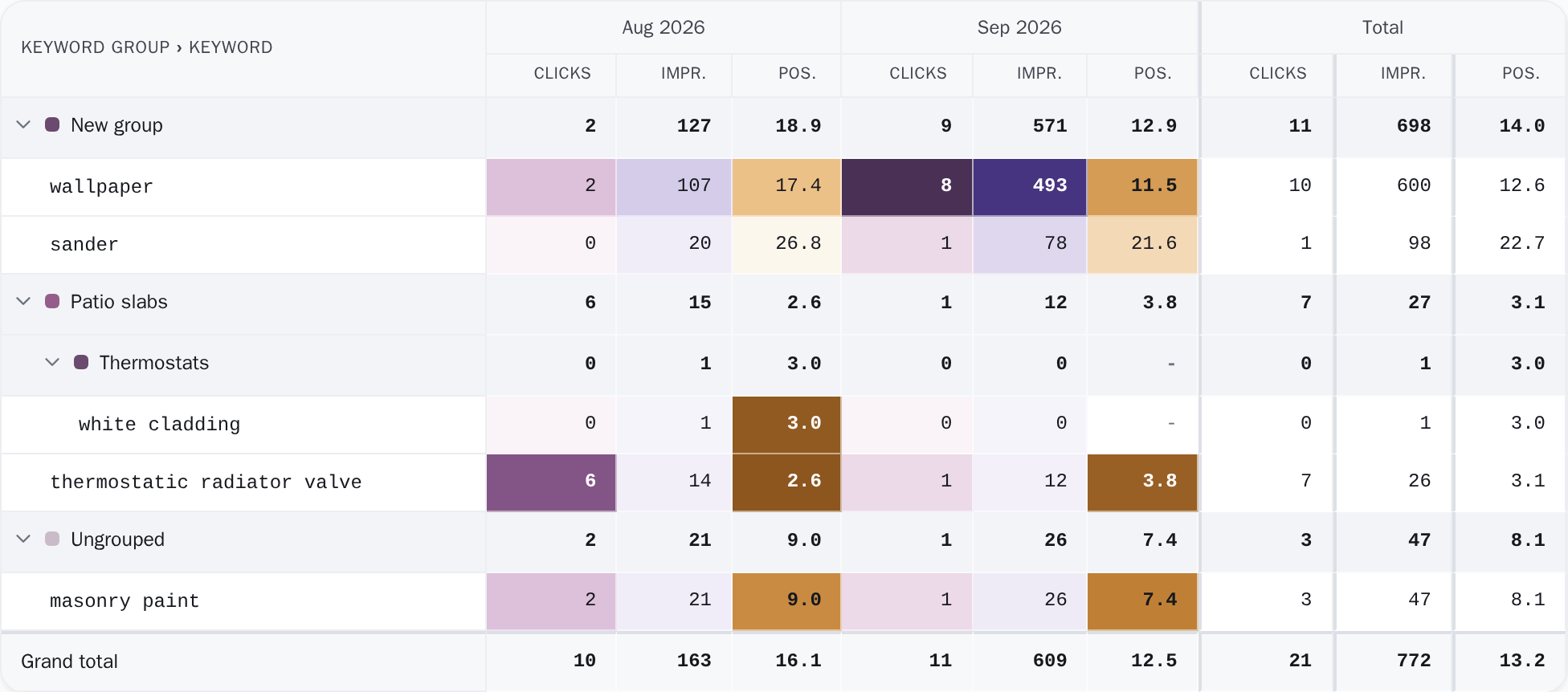
The second tab builds a pivot table, the drag-and-drop kind you would build in a spreadsheet, computed in your browser from the detailed query × page cube, filtered to your watchlist and to the date range in the header. Nine dimensions are on offer (Date at year, quarter, month, week or day, Keyword, Keyword group, Brand status, Query intent, Section, Page, Country and Device) against five values (Clicks, Impressions, Keyword count, click-through rate and average position).
Put Keyword group first in Rows and the table takes the shape of your real folder tree, Ungrouped branch and all, rather than flattening it into one label. The display controls do the rest: values across the top or down the side, absolute or as a percentage of the row, the column or the whole table, a heatmap per metric, and change chips against the previous period. Click a keyword or a page at the foot of the table to open its history.
Click a keyword for its history, and the source it came from
Click any keyword in the watchlist, or a keyword or page leaf in the pivot, and this panel opens. Inside are four tiles (clicks, impressions, click-through rate and average position), plus a fifth, the number of queries it answered, when what you opened is a page rather than a keyword. The tiles double as the chart legend: click one to add or drop its line.
The chart plots a point a day up to about four months of history, a point a week beyond that, and a point a month past roughly thirteen. The panel names its own source in one line: complete: Google's own figures for this query when the raw daily store holds it, and detailed sample: impressions run low when only the cube does.
On the complete daily path each tile also carries a change chip measured against the equal stretch of time immediately before your window. Where there is no earlier data to compare with the chip is simply absent rather than showing a confident 0.0%, and the same goes for the sampled path and for All history. One toggle swaps your window for the whole stored history and back.
Which window, and which half of Google's data
From Google's complete totals
- Window
- One fixed 90-day window ending at your last day with data
- On screen
- The six tiles at the top
- A folder's own four tiles
From Google's detailed sample
- Window
- The range you pick in the header
- On screen
- The keyword rows
- The pivot
Two windows sit on this screen, and it tells you which one you are reading. The six tiles at the top come from Google's complete per-query totals over one fixed 90-day window ending at your last day with data, and they print that fact under themselves, along with the dates they cover: "Fixed 90-day window. Google's complete per-query totals. The date range above does not change these; it applies to the tables below." They cannot follow the date picker because the table behind them holds one figure per query, with no day-by-day breakdown to slice.
The keyword rows and the pivot below are computed instead from the detailed query × page cube over the range you picked. That cube keeps close to all of your clicks but only about a tenth of your impressions, which is why the page calls it a sample rather than a total. A folder's own four tiles are the exception below the fold: they are summed from the same complete 90-day totals as the scorecard, which is what their complete · 90 days chip says, and they deliberately show no percentage change.
A change taken from the sample, printed under a total taken from the complete figures, would be two different measurements dressed up as one. Pick a range that starts before the stored archive does and an amber strip appears, naming the day keyword detail starts from: "Your selected range starts earlier, so clicks, positions and the breakdowns below only reflect the part that is covered." And a keyword Google has never reported for you is never written as a zero.
The tile reads "no data yet: opportunities" and the row reads "not ranking", because absence of measurement is not the same as measured absence.
The thresholds, stated
Exactly what you are looking at
- The six top tiles ignore the date picker, on purpose, and they say so on the page. They are one fixed 90-day window ending at your last day with data. If you want a figure for last March, it is in the tables and the pivot below, not in those tiles.
- The sparkline on a watchlist row appears for keywords in your top 1,000 queries by clicks, the snapshot the page loads alongside the watchlist, so a keyword outside it shows its numbers without a spark next to them. The tiles above and its scorecard row are unaffected, because those come from Google's complete per-query totals. Clicking any tracked keyword opens the detail panel either way, as does a query or page leaf in the pivot, whose own rows that snapshot does not bound at all.
- Two ceilings, written down here: the screen reads up to 5,000 keywords from your watchlist, and the detailed data behind the tables and the pivot covers up to 100,000 rows. An ordinary watchlist sits a long way below both.
- The pivot exports CSV, built in your browser: every row expanded, absolute values only, exactly the dimensions, filters and range you have on screen. The .xlsx export lives on the Queries and Page coverage screens, which slice the same history their own way. A position that moves while you are away is waiting for you here, on this screen, the next time you open it.
Connect your site and see the first answer today
Sign in with Google, pick a property, and your dashboard fills in while you watch, with the screen counting the days as they land.