What happens after you click "Sign in with Google"
Written out step by step, including the parts most tools leave vague: what permission we ask for, exactly what it reaches, and how long each step takes.
Before step one: your site has to be in Search Console
Search Console is Google's own free tool for site owners. If your site is not in it yet, add it there and prove it is yours, with a DNS record at your domain registrar or an HTML file uploaded to your site. Clode then copies what Google holds for that property, up to the last ~16 months.
Under a minute of your work, then it runs itself
-
When: 0s
You sign in with Google
Google shows you a consent screen listing exactly what we are asking for. The Search Console permission we request is
webmasters.readonly, the read-only one. It is not a promise we are making; it is the only key we are handed. There is no code path in this product that can modify a property, submit a sitemap or change a setting, because the permission we hold does not permit it. -
When: 20s
You pick the site
We show every property your Google account can see, and you choose. If you have both the
https://and the domain-level version of your site, we say which is which and which one holds more data, because picking the wrong one is the most common way a first look at this kind of tool goes wrong. -
When: 50s
That is your part done, in about 50 seconds. The copy runs on our server, so you can close the tab.
We copy everything Google still has
Roughly the last 16 months of daily numbers (clicks, impressions, CTR and position, per query and per page) pulled day by day rather than sampled. You can watch it arrive; a small site is done in a minute or two and a large one takes longer because we are being exhaustive rather than quick.
-
When: Once the copy ends
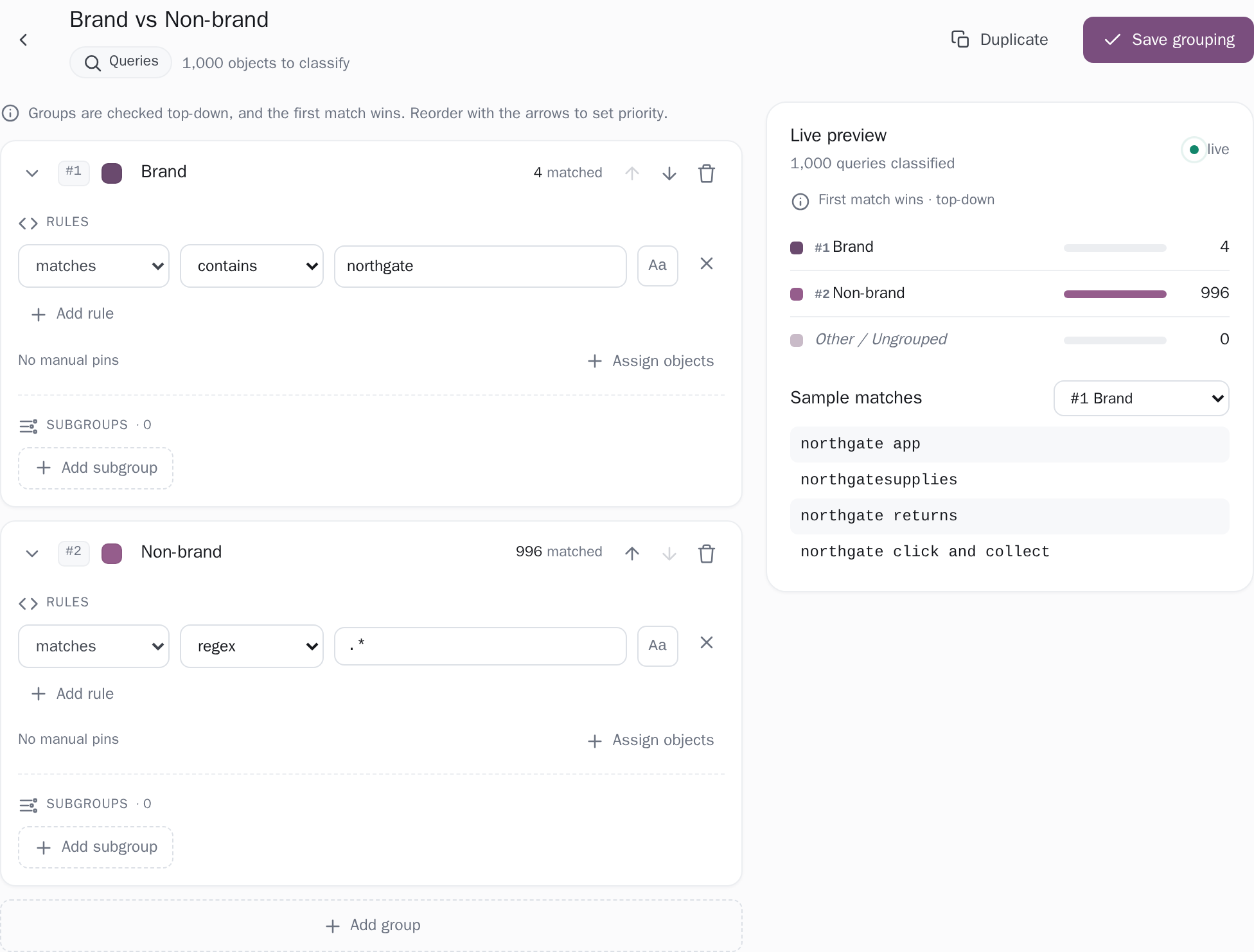
Your site gets split into groups
We propose groups from your own URL structure, the folders you already have, so the first dashboard you see is already broken into services, blog, locations or whatever your site is actually made of. Change them whenever; the history redraws itself.
-
When: Every day after
It updates itself from then on
Every day, on the free plan as well as the paid one. Each sync appends new days, recomputes every group, ranks what moved and runs four week-over-week checks, raising an alert when one crosses its threshold. You do not have to come back for it to keep working. That is the point of the alerts.
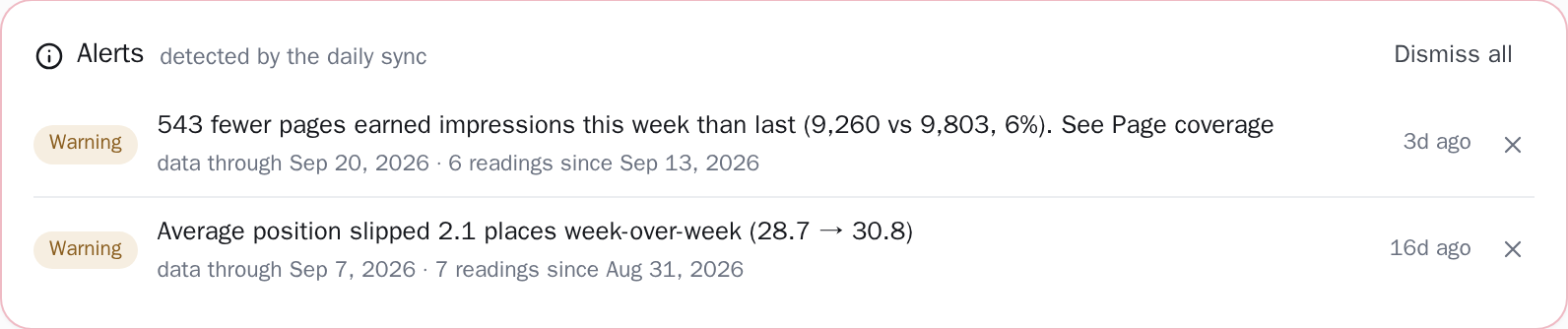
Your newest day is two to three days old
Search Console data is two to three days behind reality. That is Google's own pipeline and no tool escapes it. Anything claiming live search data is showing you an estimate from somewhere else. What we do instead is state the exact date your data is complete to, on every screen, so you always know how old the answer is.
Exactly what the access reaches
The read-only permission from step 1, and the only other things it touches:
- Two kinds of file from your server, for the coverage report: robots.txt and your sitemap files. Every other figure is data Google already recorded
- Two Google permissions: sign-in and read-only Search Console. Gmail, Drive, Ads and every other Google service sit outside them
- You hold the off switch: revoke the access in your Google account and the connection stops working at once
- Your data is never sold, and Clode has no advertising business to use it for
How the connection is stored
Your Google token is encrypted at rest with AES-256-GCM, under a key held apart from the database, and passwords are hashed with scrypt. The security page covers how the application is defended, links the sub-processor list and says how to report a problem.
Read the security pageConnect your site and see the first answer today
Sign in with Google, pick a property, and your dashboard fills in while you watch, with the screen counting the days as they land.