Pivot analytics
Build the table yourself. It says what it covers
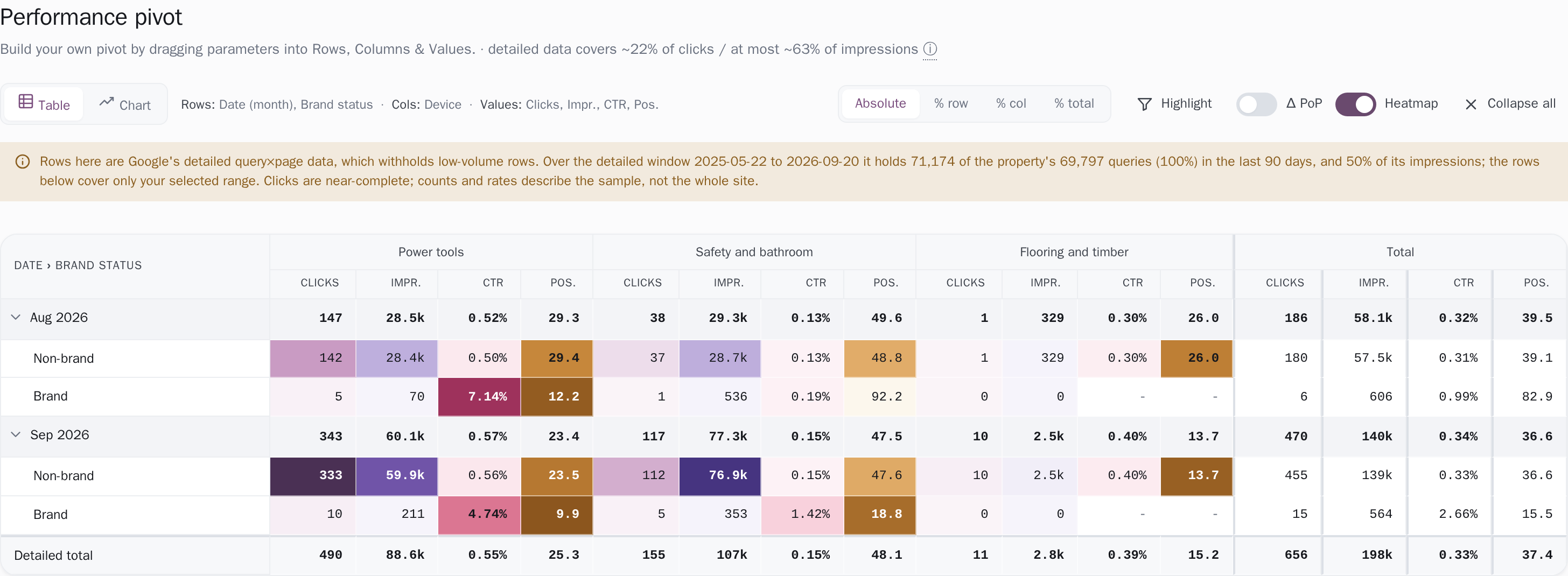
Every month it is the same job: export Search Console, paste it into a sheet, build the pivot, watch it break, rebuild it. And the export you started from only ever held a slice of the rows. This is that pivot already built, running over the history stored for your site. Above the table it prints how much of your traffic the numbers underneath actually account for.
How it works
Drag eight dimensions and five metrics into four zones
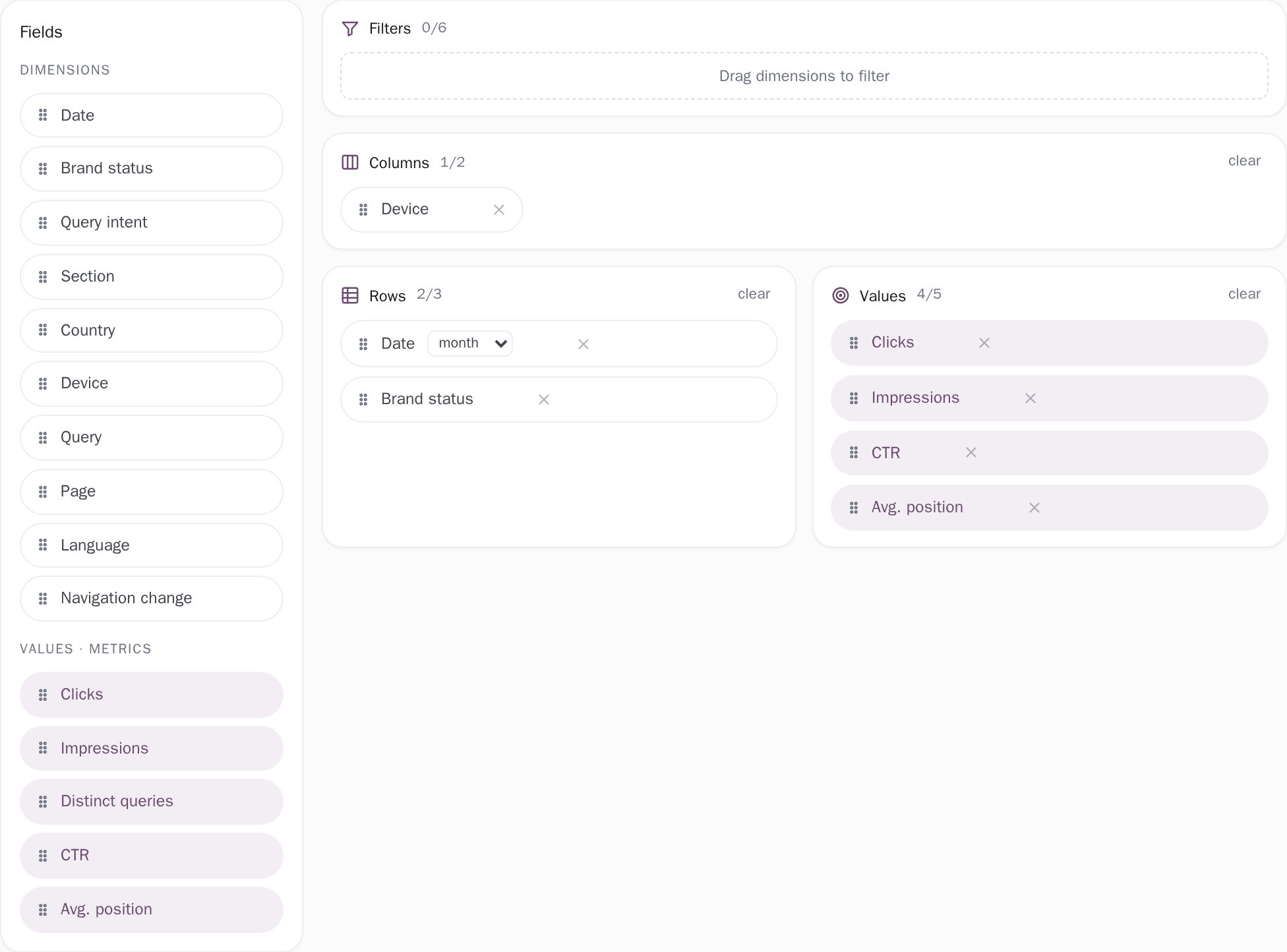
The left rail lists everything you can pivot on: Date, Brand status, Query intent, Section, Country, Device, Query and Page, plus every custom grouping you have made for this project, which turns up as a dimension of its own. The metrics are Clicks, Impressions (summed per page, so a query that two of your pages answer counts on both), Distinct queries, CTR and average position (weighted by impressions, so 1 is the top of the results).
Drag a chip into Filters, Columns, Rows or Values, or put keyboard focus on it and press Enter, which sends a metric to Values and a dimension to Rows, or to Columns once Rows is full; the Filters zone is reachable by dragging. Drop a metric on a zone that takes dimensions and it refuses with a short note, This zone takes dimensions, rather than building something meaningless. Every zone card carries its own used-of-maximum counter, so you can see what is left before you run out.
Subtotals computed in the database, not added up
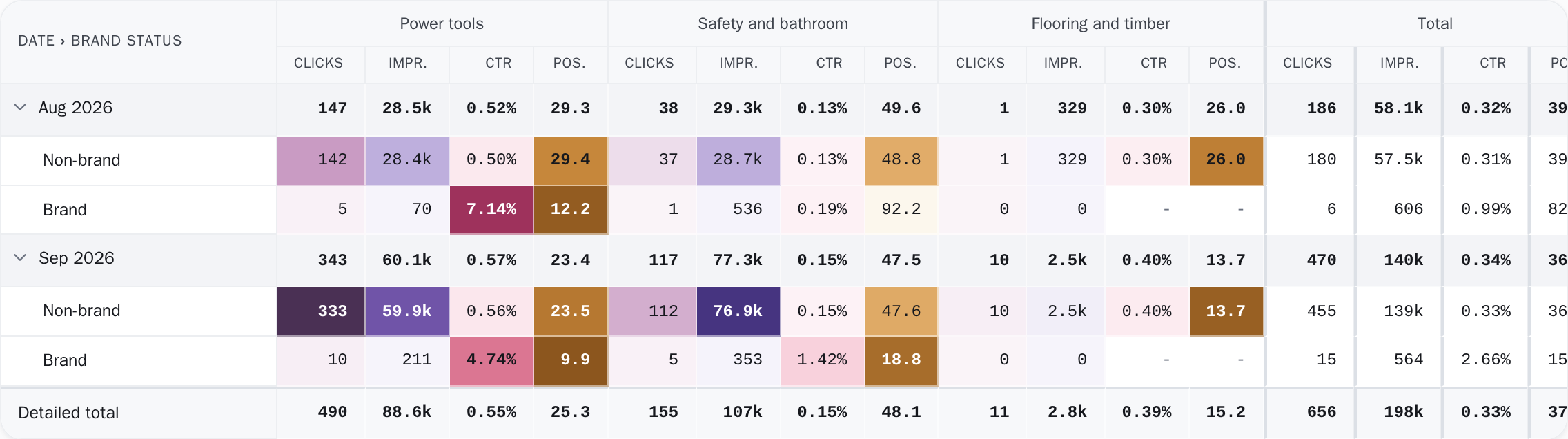
Every level of the table is a real aggregate. The grouping is done in the database with GROUP BY ROLLUP, so a parent row is computed over its own rows instead of being summed from the children displayed beneath it. That matters most for the two figures that cannot be added at all: CTR is recomputed as clicks divided by impressions at every level, and average position is weighted by impressions at every level, subtotals included.
Where a rate has no impressions to divide by, the cell shows a dash rather than a zero. Column headers nest up to two deep, with a bold Total group beside them whenever a Column dimension is set; row headers nest up to three deep, each level with its own expander. Sorting is honoured at every one of those levels, not just the deepest. A middle level left on the default order is how a sorted-looking table quietly lies.
The Aug 2026 subtotal under Top sellers
| Row | Clicks | Impressions | CTR | Position |
|---|---|---|---|---|
| Aug 2026 | 231 | 43.3k | 0.53% | 28.1 |
| Non-brand | 222 | 43.2k | 0.51% | 28.1 |
| Brand | 9 | 126 | 7.14% | 10.8 |
| If the two rows were averaged |
Read the same table four ways, then open a query or page
A four-way switch restates clicks and impressions as absolute numbers, a share of the row, a share of the column, or a share of the grand total, without rebuilding anything. CTR and position are already rates and stay as they are. Each metric's leaf cells are heat-shaded on their own colour scale, on by default and switchable off; subtotal rows stay plain, so a shaded cell always means one real combination rather than a group.
Δ PoP prints the change against the previous date bucket beside each figure; it engages only when Date is the first Row dimension, it compares in date order rather than against whatever your sort happened to put above, and it prints nothing at all when the previous bucket was zero. Clicking a Query or Page row at the deepest row level opens a detail panel: its five figures, each measured against the equal window before it where one exists, then a chart drawing both periods on one timeline, and the groups that object belongs to.
Save the pivots you keep rebuilding, and export them
Each saved pivot is its own page in the sidebar, with its own name and layout. Rename, duplicate, reorder or delete them, with no limit on a paid project and 1 on a free one. A layout you build is kept in your browser and mirrored to the server as you edit it, so it survives a cleared browser and follows you to a second device. CSV re-runs the pivot and writes the table you are looking at: every nesting level flattened, every column group and the Total group included.
The file opens with comment lines naming your selected range, the window detailed data actually exists for and the sampling percentages. And when rows were capped, a line immediately above the Detailed total row says how many are missing from the file, so a truncated export cannot be read as the complete dataset.
Which window, and which half of Google's data
From Google's complete totals
- Window
- The detailed window inside the range you pick
- On screen
- What the share line above the table divides by
- What the amber banner's "at least" share divides by
From Google's detailed sample
- Window
- The detailed window inside the range you pick
- On screen
- Every row of the pivot table
- The Detailed total row
- What both shares count
Whatever range you pick (7 days, 28 days, 3, 6 or 16 months, all history, a named week, month or quarter, or a custom span), each rolling preset is clamped to the first day actually stored, so a window can never claim days that do not exist. On a free project, which stores 14 days, the picker offers only the last 7 days and everything kept, with the real dates on the button; a paid archive keeps a rolling 24 months, about eight more than Search Console itself serves.
The rows come from Google's detailed query × page data, not from the complete per-day property totals the Dashboard uses: Google publishes that breakdown for only part of your traffic and anonymizes the rest, so the two do not match and this screen never pretends they do. Above the table a live line reads "· detailed data covers ~N% of clicks / ~M% of impressions", measured against the detailed window inside your range rather than the whole range, because dividing a 90-day numerator by a 6-month denominator published a sampling rate that was mostly just missing days; when the two differ the line names the window it used.
The bottom row is labelled "Detailed total", not "Total", with the tooltip "Total over Google's query + page level data, a subset of your clicks. The Dashboard shows complete property totals." The amber banner above the table words its own impressions share "at least" on purpose: our stored rows carry a count per page while Google counts a search-results impression once per query, so those rows are de-duplicated before that comparison, which makes that figure a floor rather than an estimate.
When the screen cannot answer honestly it withholds rather than guesses. Pick a range that starts before detailed data begins and a banner names the first day the detailed data covers, then says "Your selected range starts earlier, so every figure below reflects only the covered part." A rate with no impressions behind it renders as a dash rather than 0, a missing point breaks the chart line rather than being drawn as zero, and a pivot that would run past its 25-second database budget comes back as "This pivot is too large to build", naming the two things you can change: narrow the date range, or group by something with fewer members.
The thresholds, stated
Exactly what you are looking at
- It is a sample, and it is labelled as one. Google withholds the query and page breakdown for low-volume traffic, so the counts and rates here describe the covered part of your site rather than all of it. That is why Distinct queries reads lower here than on the Queries page. Complete property totals live on the Dashboard.
- The on-screen coverage percentage is stated only where it can be measured honestly. Set a filter and it gives way to a description of the rows, "· Google's query + page data (a subset of total clicks)", because a filtered numerator over an unfiltered property total is the wrong sum. The CSV preamble applies the same rule: with a filter active the file prints the reason in place of a figure, and with no filter it writes the share in.
- The screen names the cut under the table ("Showing top 300 · N more rows not shown. Refine with filters") and again inside it ("N more under Non-brand. Add a filter to see them"), and the CSV writes the omitted count into the file, so the size of what the cap held back is on the page and in the export every time. Narrow the range or add a filter and those rows come back.
- Export is CSV, and only CSV: one button writes the whole expanded table into one file, along with the count of rows the cap held back and the coverage preamble. The chart view answers a narrower question than the table, by design: it plots the first Row dimension on the x-axis, and a non-date chart draws the top 14 members by clicks.
Connect your site and see the first answer today
Sign in with Google, pick a property, and your dashboard fills in while you watch, with the screen counting the days as they land.