Team access
Show a client their numbers without handing over your Google account
The numbers belong to your client. The Google account that reads them belongs to you, and there is only one of it: hand over that password and you have handed over every property on it, the inbox beside it, and everything else Google keeps there. So the access you give here is a different thing. You invite an address, pick one of three roles, and that person signs in as themselves, into this project and this project only. Your Search Console connection stays where it is: encrypted, read-only, and attached to the project rather than to them.
How it works
We email the invitation, and hand you the link if we can’t
Type an address, choose the role beside it, press Send invite, and the project gains a row marked Invited. Behind it the server mints a single-use token: 24 random bytes, 32 characters in the URL, kept in the table as a SHA-256 hash, so the database holds the proof of a link and never a working one.
The link is the invitation, and Clode emails it to the address you typed, in a message that names you and carries an Accept invitation button; your screen confirms with Invite sent to that address. If the email cannot be sent, the link comes back to you instead: the route reads back whether the message went out and, whenever it did not, puts the link on the screen you are standing on, in a box headed Invite link for that address, with a Copy link button and the app’s own instruction beside it, “We couldn’t email this invitation, so copy this link and send it yourself. It’s single-use.” Send it in the thread you already have with that client.
Opening it signs them into the project’s dashboard; a signed-out visitor is carried through sign-in by /login?next= and returned to the same link, and since the token is spent only at the moment it is accepted, that link still works after they have made an account.
Three roles, and the server is the one that checks
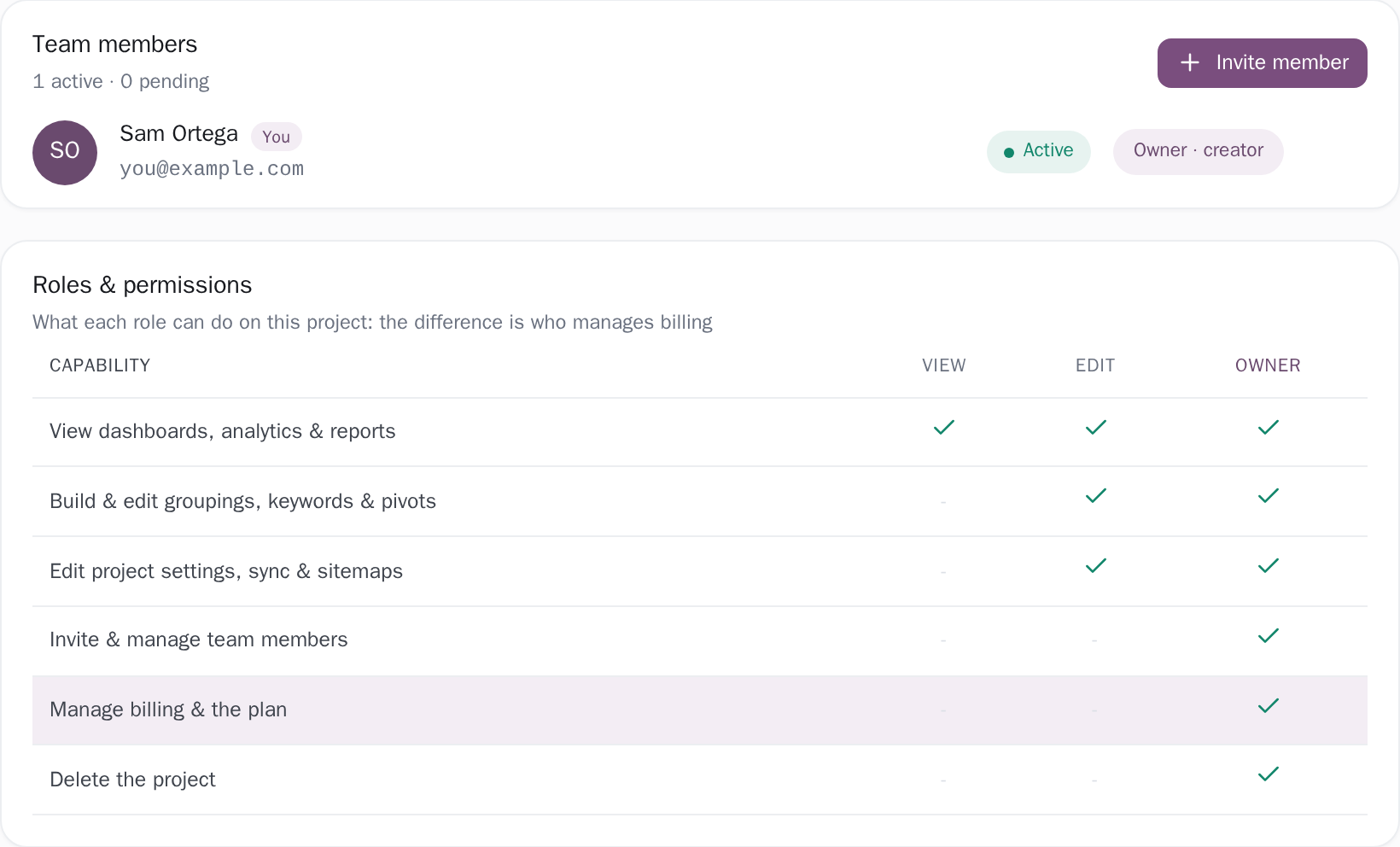
View, edit and owner are ranked 0, 1 and 2, and every route that writes anything asks the database for the caller’s rank before it writes. Sync now, groupings, dashboard notes and dismissing an alert need edit or above; inviting, changing a role and removing a member need owner. Reading is the part everyone shares: dashboards, analytics, target keywords, page coverage and the CSV and Excel downloads open for all three.
A refusal is a real 403 with a name on it, viewers_cannot_sync, viewers_cannot_edit, owner_only, and on the dashboard that name is turned back into a sentence the reader can act on: “Your role on this project cannot dismiss alerts.” Settings also carries a Preview as switch, so an owner can look at the project the way a viewer or an editor looks at it, and the switch only moves down from your real role: the code that decides whether the team controls appear asks for owner twice, once of the preview and once of the role the server returned.
Your Google connection stays yours
A teammate never touches Google. The Search Console connection is made once, by the account that created the project, and what it leaves behind is an OAuth token encrypted at rest with AES-256-GCM under the one Search Console permission this product ever asks for, webmasters.readonly. Everything a member reads comes out of your stored data rather than out of Google, and when an editor presses Sync now the job lifts the project’s own connection out of the database and uses it without putting it on a screen.
The connect flow is scoped to the signer’s own projects, so a property is attached by the account that holds it. They arrive with a sign-in of their own: a password with two-factor if they want one, or the Google button, which is a sign-in rather than an access grant and hands over an account id, a verified address and the name on the account.
The list says who has access and how they got it
One row per person: the project’s creator first with a creator badge, then everyone invited, in the order the invitations were made. Each row carries an initialled avatar in one of eight colours, the name or the address, the role, and Active or Invited. To an owner the role is a select and the row also carries one control that removes the member or cancels the invitation, behind a confirmation that names them; to a viewer or an editor the role is a badge and there is nothing to press.
The creator’s row shows a badge where the others show a select, and that is arithmetic rather than styling: both writes reach a membership row by its id, and the creator is a project row, so their access is the one thing this screen leaves alone. Above the list sits the count, for example “2 active · 1 pending”.
What this screen is reading
This screen is the membership itself rather than a window over it. The rows are what the database holds at the moment the Team tab loads, re-read from the server on every load, in the order the invitations were made: the project’s creator first, synthesized from the row that owns the project and badged creator, then every member and every pending invitation, each carrying its stored role and either Active or Invited.
The line above the list, for example “2 active · 1 pending”, is that same list counted. On a pending row, the date after “invited” is the day the invitation row was written. “invited as [email protected]” appears on a row only where the address you typed and the account that opened the link are two different addresses, and the tooltip says why: “The invitation was sent to this address, and a different account opened the link.” And the question this screen answers is who may open this project right now.
Who did what is a separate record: an invitation created, an invitation accepted, a role changed and a member removed are each written to the application log against the project and the account that did it.
The thresholds, stated
[email protected] and capped at 254 characters, and one project holds one row per address: invite the same person twice and the second attempt comes back as already invited rather than as a second link. A role that is not one of the three falls back to Can view, the least it could be. Invitations are rate limited to 10 a minute, and every write on this screen carries a CSRF token.Exactly what you are looking at
- The invitation comes from Clode, not from you. Your client gets an email from our address that names you, so tell them it is on its way. If it does not arrive, cancel the invitation and send a new one: a link that has been emailed cannot be shown again, because only its hash is kept.
- Whoever opens the link holds the access, and the list says so out loud. The token is the credential, not the address it was aimed at, so a forwarded invitation works, which is usually what an owner wants when the client’s real account is not the address they gave you. The row then records both sides: the account that accepted becomes the row, the address you typed is kept beside it as “invited as [email protected]”, and the tooltip on it says what happened. 14 days is the outside edge of that, because a thread forwarded a year later is a different kind of invitation.
- A change of role takes effect on the next request. Move someone from edit to view, or take them off the project, and their very next request is judged on the new answer rather than on whatever their session was told at sign-in, because access is a query the server runs on each request rather than a fact stamped into the session.
- Access is granted one project at a time, and it reaches exactly that project. An invitation names a project, and a member’s own list is their own sites plus the sites they were invited into, each row carrying the same avatars in its team column. The account that created a project keeps what belongs to creation: the delete statement matches a project only when the caller is the id on the project row, so an owner seat is the authority to run the project and the creator’s seat is the authority to end it. A person’s own labels, target-keyword watchlist and saved Analytics layouts are stored per person per project, so what a colleague arranges for themselves stays on their screen.
Connect your site and see the first answer today
Sign in with Google, pick a property, and your dashboard fills in while you watch, with the screen counting the days as they land.