Groups
Your site is several sites. Measure them apart.
Traffic is down and the single line on the Search Console home page will not say where. Your service pages can be losing while the blog quietly covers for them, and the total looks flat the whole way down. The only way to see it is to cut the site into the parts you already think in, then read each part on its own.
How it works
Three groupings before you build one
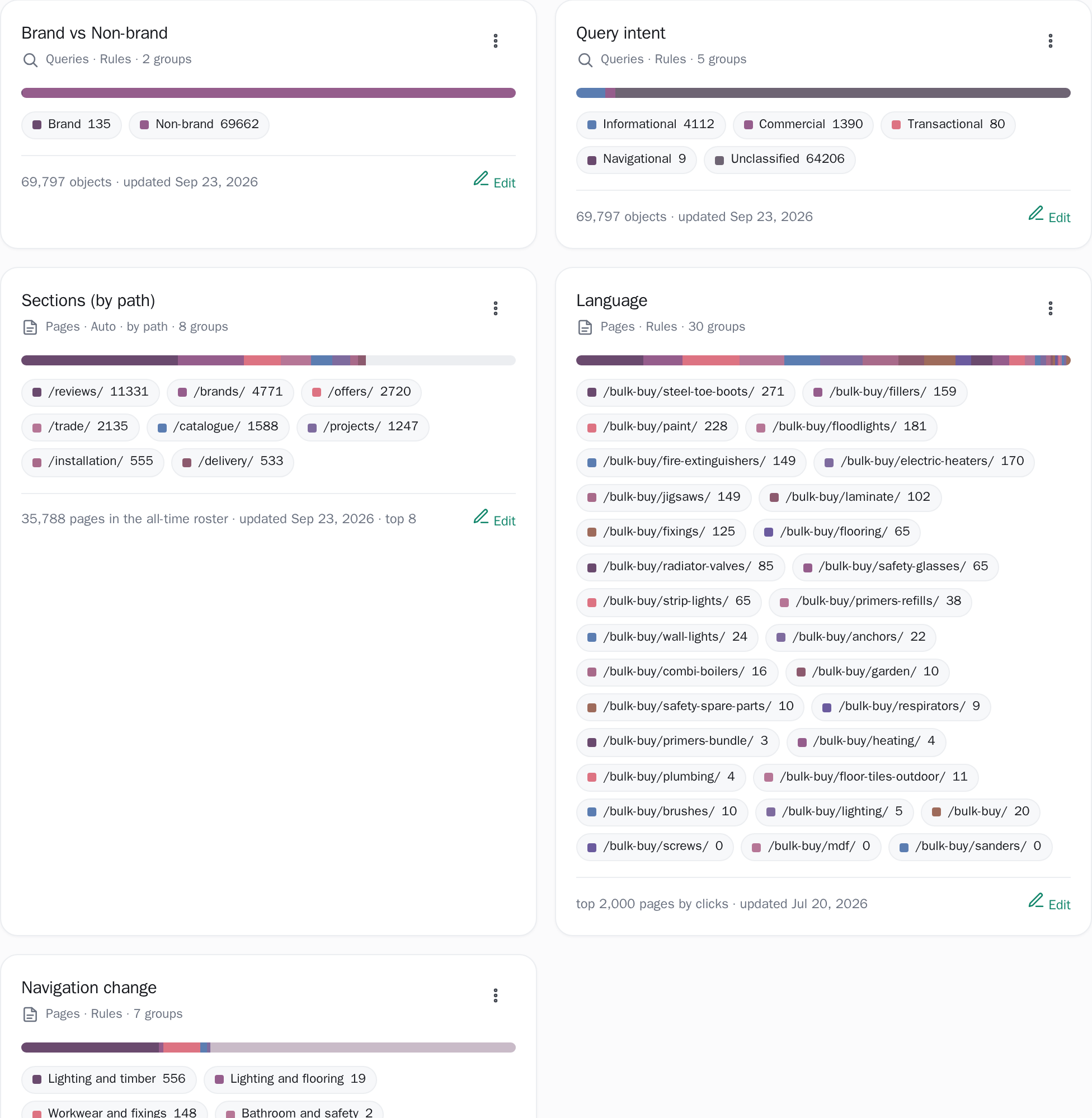
Once your first sync lands, open Groupings and the grid already holds three: Brand vs Non-brand, Query intent, and either Sections (your URL folders) or Subdomains, named for the cut it actually made: hosts only on a property whose pages really are spread across several of them, first path segment otherwise.
They are rebuilt on every sync, so they do not go stale, and you can edit one: save it under the same name and your version takes its place in the grid; rename it first and it joins the grid as a new grouping beside the rebuilt original. Each card carries a stacked bar of the split, a coloured pill per group with its object count, and a caption naming what was counted and on what date.
The Sections/Subdomains card ships the eight largest groups and labels itself top 8, with the real number of groups in its tooltip. The three that ship cannot be deleted; Delete appears only on groupings you made yourself.
Rules you can read out loud
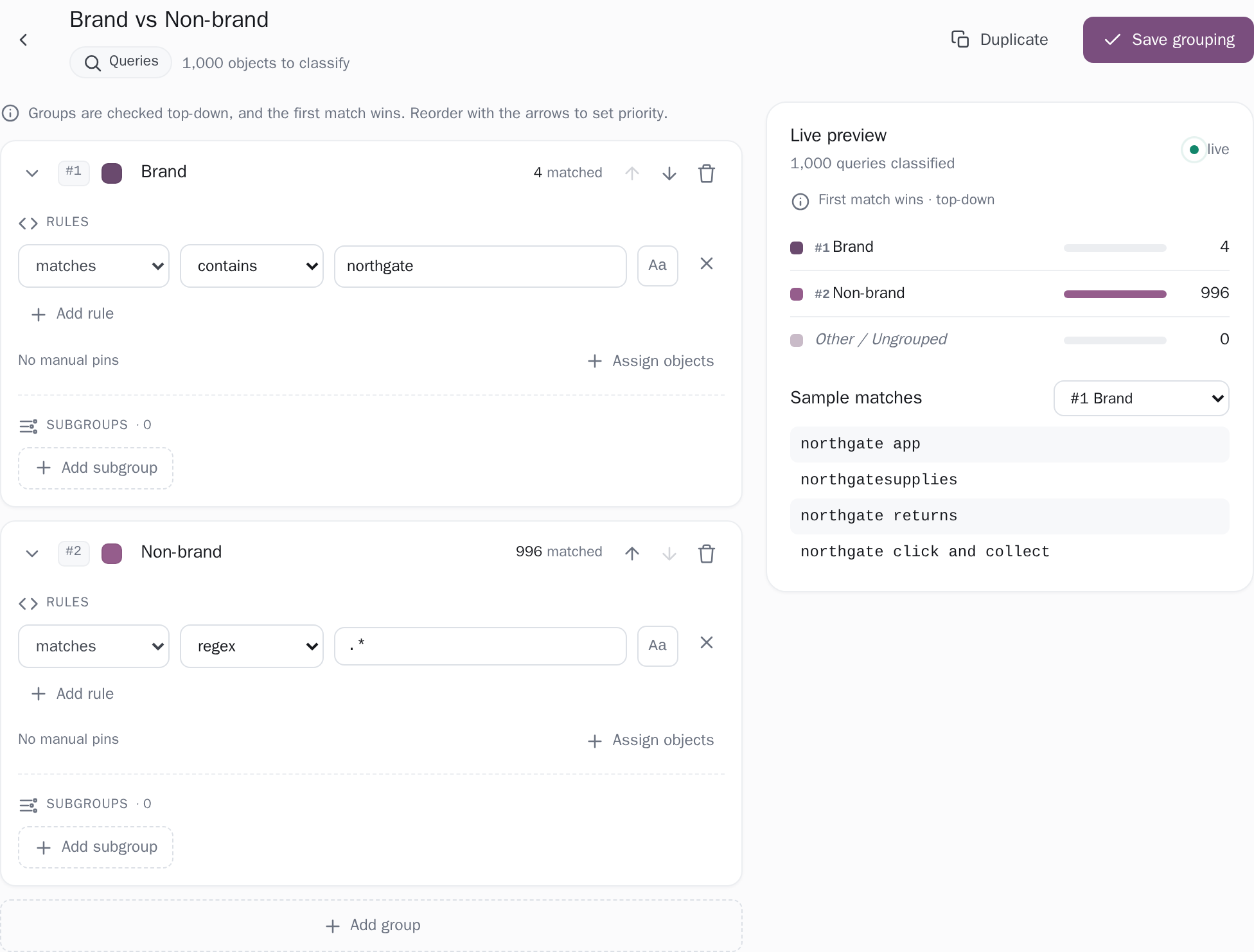
A rule is one line: matches or doesn't match, then one of six tests (contains, equals, starts with, ends with, regular expression, or in list, where you paste one value per line), then the value, plus an Aa button for case sensitivity. Several positive rules in the same group are ORed, so any one of them is enough; a single negative rule vetoes the object outright and turns its row red; and a group with no rule filled in matches nothing at all until you pin something to it by hand.
Groups are then checked top-down and the first match wins, which the page says above the tree and again above the preview, so a query or page lands in exactly one group, never two, and the arrows on each group are how you change that priority. A subgroup is only ever tested against what its parent already caught, so nesting narrows rather than competes: Blog with EN inside it reads exactly as it looks, and each level carries an order badge (#2, #2.1, #2.1.3) so you can see where an object came to rest.
Run the rules on twenty queries
Change the direction, the test, the value or Aa and every query is relabelled as you type, matched the way the editor matches. Then swap the two groups: the queries both of them catch move with the order.
-
Brand#1
-
Prices#2
matchesregex
price|cost
Checked top-down: the first group that matches keeps the query.
Brand 6 Prices 5 Other / Ungrouped 9
- northgate plumbing Brand
- northgate boiler service Brand
- northgate plumbing prices Brand also matches Prices
- northgate customer login Other / Ungrouped kept out by a “doesn't match” rule
- northgate reviews Brand
- north gate plumbers Other / Ungrouped
- northgateplumbing.example Brand
- boiler repair near me Other / Ungrouped
- emergency plumber Other / Ungrouped
- boiler service cost Prices
- combi boiler price Prices
- plumber prices per hour Prices
- underfloor heating cost Prices
- how to bleed a radiator Other / Ungrouped
- leaking tap fix Other / Ungrouped
- water heater installation Other / Ungrouped
- boiler not heating water Other / Ungrouped
- radiator valve replacement Other / Ungrouped
- northgate careers Brand
- gas safety certificate price Prices
Example queries for Northgate, an invented plumbing business.
Groups from your URL folders, previewed first
For a Pages grouping you need not type anything: Auto generate by URL path reads your URL structure and proposes one group per folder. A slider sets how deep to cut, from depth 1 grouping by /blog/ up to ten segments for /blog/seo/2026/, and the panel beside it lists the folders it found in the pages it can see, the top 2,000 by clicks, with a page count each, so you know exactly what you are about to make before you press Generate; the hint is straight about overshooting: "Depths deeper than your URLs simply yield fewer groups." What comes out is ordinary groups, each seeded with a starts-with rule on its folder, which you can rename, recolour, re-rule and nest.
The app promises it in the panel and confirms it in the toast that follows, which counts the groups it made and ends "now fully editable". Regenerating later asks first and names the cost: "This replaces the current groups with ones derived from URL paths. Your edits to groups will be lost."
Counts move as you type; leftovers stay visible
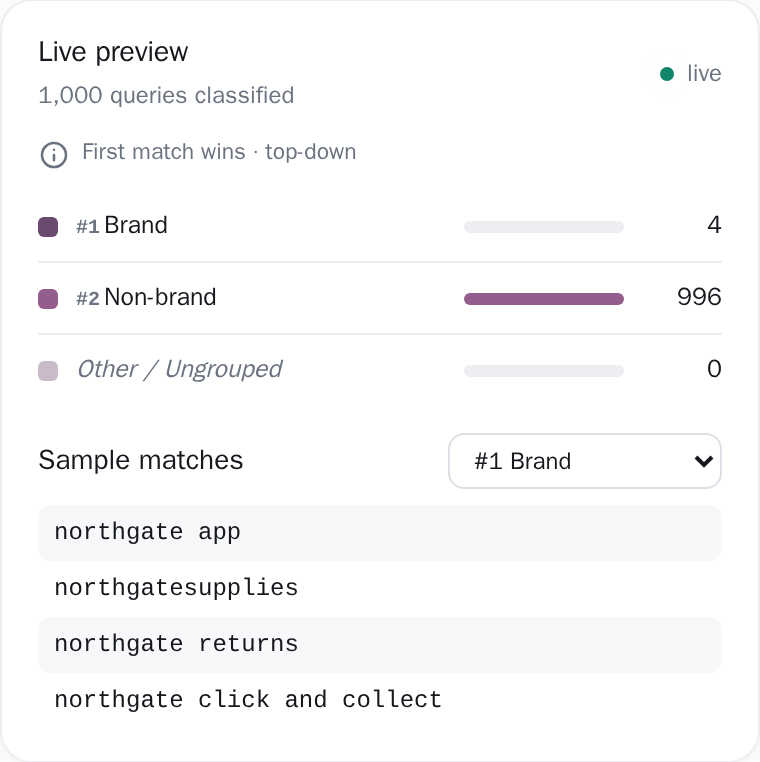
The column on the right recomputes in your own browser on every keystroke, with no save, no reload and no round trip to us: a ranked bar per group in tree order, each group's "matched" count, and a pulsing live pill. Underneath, Sample matches lets you pick any bucket and read up to 25 of the real queries or URLs that fell into it, which is the quickest way to catch a rule that is catching too much.
An italic Other / Ungrouped row always sits at the bottom of the preview, so whatever your rules missed is on screen rather than quietly absorbed, and Assign objects opens a searchable list of those unassigned objects, sixty candidates at a time with the true unassigned count printed underneath, to pin into a group by hand; a pin counts as a match for its group before that group's rules are read at all.
A regular expression that does not compile shows the browser's own message inline behind an "Invalid regex:" label and matches nothing, so the preview keeps working while you fix the pattern.
What a grouping is for once it exists
The same 90 days of clicks, read two ways. As one line the site is flat. Split by two of the groupings your first sync builds, one section is falling and another is making up for it.
- Site total−2%
- Brand+2%
- Non-brand−3%
- /services/−15%
- /blog/+15%
Example figures: weekly clicks for 13 weeks, about 90 days, and the change from the first week to the last.
Which window, and which half of Google's data
This screen reads Search Console's query and page reports as pulled by our sync, once a day on both plans, and its query counts cover the last 90 days. It will not pretend every number on the screen is the same population. Where every other screen has a date picker, Groupings shows a disabled badge reading "90-day totals" over the sub-line "no date range here", tooltipped "Google keeps per-query history for ~90 days, so this page always shows 90-day totals and doesn't follow the date picker".
The captions under the cards then name three different populations instead of sharing one vague word. On the site in the screenshot at the top of this page they read "71,651 objects · updated Sep 18, 2026" for a full query count over that 90-day window, "35,785 pages in the all-time roster · updated Sep 18, 2026" for a count taken across every page we have ever recorded for the site, with no window at all, and "top 2,000 pages by clicks · updated Jul 20, 2026" where the groups were worked out over a sample.
The date is when those numbers were computed, which for a grouping you built yourself is the day you saved it. The card is a snapshot, and opening the editor recounts from scratch against today's data. Where the editor knows how much it cannot see, it says so on the header line, "previewing 2,000 of" and then the full count. And while the page and query data behind the preview is still loading, it holds the editor shut and tells you "Loading page & query data..." rather than opening on half a dataset.
How far a grouping can go
#6A4A6E, and an account member with view-only access is refused outright with viewers_cannot_edit.Exactly what you are looking at
- Every object lands in exactly one group. Groups are checked top-down and the first match wins, so a Spanish blog post counts once, under whichever of /blog/ or Spanish sits higher in the list. If you need both cuts, nest one inside the other or build a second grouping.
- This screen always answers for the same 90 days, whatever range the header showed on the page before, and your range is still set when you go back.
- The editor previews over a sample, not your whole site: the top 2,000 pages by clicks, or the top 1,000 queries by clicks. It names the gap only where the server shipped a bigger total to compare against, which today is the Sections/Subdomains card, whose header line reads "previewing 2,000 of" and then the card's full count. Everywhere else the same line reads, for example, "1,000 objects to classify", naming the sample without naming what it was drawn from; the card's own caption is where the sampling is spelled out.
- Two lists inside the editor are capped. Sample matches shows at most 25 examples from a bucket and does not say so. The manual-pin picker offers 60 candidates at a time, and that one at least prints the real total underneath, so a footer reading "1,875 unassigned" can sit below 60 rows.
Connect your site and see the first answer today
Sign in with Google, pick a property, and your dashboard fills in while you watch, with the screen counting the days as they land.