Google Search Console, for people who did not want to learn SEO
You built a site for your business, maybe with a website builder, maybe with an AI. Now you want to know one thing: is anyone finding it? Search Console answers that, free, and this is the short version of how to read it.
Last updated 2026-09-04 · The Clode team · Guides
The short version
Set up Search Console (10 minutes, free, no code if you use a site builder). Then look at four things: how many people saw your site, how many clicked, what they searched for, and which of your pages get shown at all. Everything else can wait.
What Search Console actually is
It is a free tool from Google that shows you how your website appears in Google searches. Not visitor numbers (that is a different tool) but the search side: what people typed, whether your site came up, and whether they clicked it.
It is the only place this information exists. No other service has it, because it is Google's own record of its own search results. Everything else you could buy is a guess by comparison.
Setting it up
Go to Google Search Console, sign in, and add your website. Google needs to check you own it. If you built your site with Wix, Squarespace, Shopify, WordPress or similar, there is usually a built-in connection or a one-line setting, and the steps for each are below. Otherwise the DNS method through whoever sold you your domain works for every site.
Then wait. Data starts accumulating from the day you verify, and the first few days will look empty. That is normal.
What is your site built with?
- In Search Console, choose Add property, pick URL prefix and enter your full address, starting with https://. Choose HTML tag and copy the tag Google shows you.
- In your Wix dashboard, open SEO & GEO, scroll down to Tools and settings and choose Site Verification.
- Expand Google Search Console, paste the tag and click Save.
- Back in Search Console, press Verify.
Needs a paid Wix plan and your own domain connected to the site.
Before you start: publish the site if it is still a trial, and remove any site-wide or homepage password.
- In Squarespace, open the Analytics panel and click Search keywords.
- Click Connect in the pop-up.
- Sign in to the Google account you want to use, review the permissions and click Allow.
- That is the verification done. Search data can take up to 72 hours to appear.
- In Search Console, choose Add property, pick URL prefix and enter your full address, starting with https://. Choose HTML tag and copy the tag Google shows you.
- In your Shopify admin, open Online Store. Next to your theme, open the three-dot menu and choose Edit code.
- Under Layout, open
theme.liquid, paste the tag on a new line directly below<head>and click Save. - Back in Search Console, press Verify.
If Verify does not work at first, wait 15 minutes and press it again.
- In Search Console, choose Add property, pick URL prefix and enter your full address, starting with https://. Choose HTML tag and copy the tag Google shows you.
- Paste the tag into WordPress, in whichever of these your site has:
- With the Yoast SEO plugin: open Yoast SEO, then Settings, then Site connections. Paste it under Google and click Save changes. Yoast's instructions
- On WordPress.com: open Jetpack, then Settings, and the Traffic tab. Paste it in the Google box under Site verification services and click Save settings.
- Back in Search Console, press Verify.
This works for every site, whatever it is built with.
- In Search Console, choose Add property, pick Domain and enter your domain name on its own, without https:// or www.
- Copy the TXT record Google shows you.
- Sign in where you bought your domain, open its DNS settings and add a TXT record with that value.
- Back in Search Console, press Verify. A new record can take up to two or three days to show; if it fails, try again later.
The four numbers, in plain words
Impressions.
How many times your site appeared in someone's search results. Appearing is not being noticed: being tenth still counts.
Clicks.
How many of those people actually came to your site.
Average CTR.
The share who clicked out of those who saw you. Mostly determined by how high up you were.
Average position.
Roughly how far down the page you were. 1 to 3 is the top; anything past 10 means page two, where almost nobody goes.
If you only remember one thing: a lot of impressions with almost no clicks usually means you are appearing, but too far down for anyone to reach you. The metrics guide covers the three traps in these numbers, above all average position.
How this works in Clode
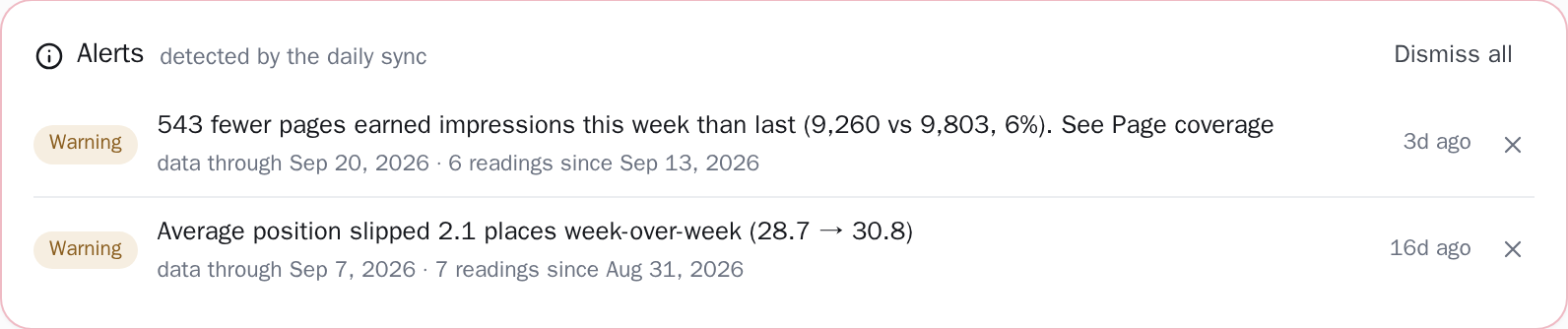
Clode keeps watch for you. After every sync (one runs automatically each day), it compares your latest week with the week before on four counts: clicks, average position, how many searches you are in the top ten for, and how many of your pages were shown at all. When one falls far enough to matter, a sentence saying what fell, and by how much, is waiting at the top of your dashboard.
The one report worth opening
Open Performance, then the Queries tab. That is the list of what people actually typed to find you, in their words, not yours.
It is regularly a surprise. People search for the problem, not for what you call your service: "boiler making banging noise", not "heating maintenance". Those phrases are the words that should be on your pages, and reading that list is the single most useful thing most small business owners get from Search Console.
Then open the Pages tab. If a page you care about is not there, Google is not showing it to anyone. That is a real problem and usually a fixable one.
Performance
| Top queries | Clicks | Impressions |
|---|---|---|
| boiler making banging noise | 14 | 310 |
| boiler repair near me | 9 | 420 |
| emergency plumber | 3 | 260 |
What people typed, in their words. These are the phrases your pages should use.
| Top pages | Clicks | Impressions |
|---|---|---|
| /boiler-repair | 18 | 640 |
| /blog/why-is-my-boiler-banging | 12 | 350 |
| / | 7 | 290 |
Only pages Google showed are listed. A page you care about that is missing is a page Google is not showing to anyone.
What to actually do about it
Write the words your customers use.
Take the phrases from the Queries list and put them, naturally, into your page titles and text.
Give each service its own page.
One page trying to cover everything ranks for nothing. A separate page per service, and per town if you serve several, is the oldest advice in local search because it still works.
Fix pages nobody is shown.
A page with zero impressions after a couple of months is either too thin or too similar to another one of your pages.
Check every month, not every day.
Search moves slowly. Daily checking produces anxiety and no information.
Where a tool helps, and where it does not
Everything above is free and does not need us. If you have five pages and ten minutes a month, Search Console alone is enough, and we would rather say so.
Two things get hard without help. The first is remembering to look. Almost nobody keeps it up, and problems get found months late. The second is that Search Console reports without explaining: it tells you the number changed, not which part of your site changed or what that means.
Clode reads the same data, writes it out in sentences, splits your site into its real parts, and gets in touch when something changes enough to be worth your time. One site is free with no card, so the honest way to decide is to connect it and see whether the first screen tells you something you did not know.